ChatGPT Top-Up Guide
ChatGPT Go / Plus / Pro five-step top-up guide: verify your account, pay and check your order step by step; session information is equivalent to login credentials, so submit it only on the order or activation page.
Choose a plan
Open the “ChatGPT Top-up” page and compare the four tiers together: Go suits light everyday use, Plus suits writing and light-to-moderate coding, and Pro 100 and Pro 200 suit people who use Codex as a production tool. Select a tier and click “Buy now” to reach the order page. The order page lists the account requirements, price, and after-sales terms for that tier, so read them before continuing. Prices follow what the page shows in real time; the figure on the page is the amount in RMB you will pay.
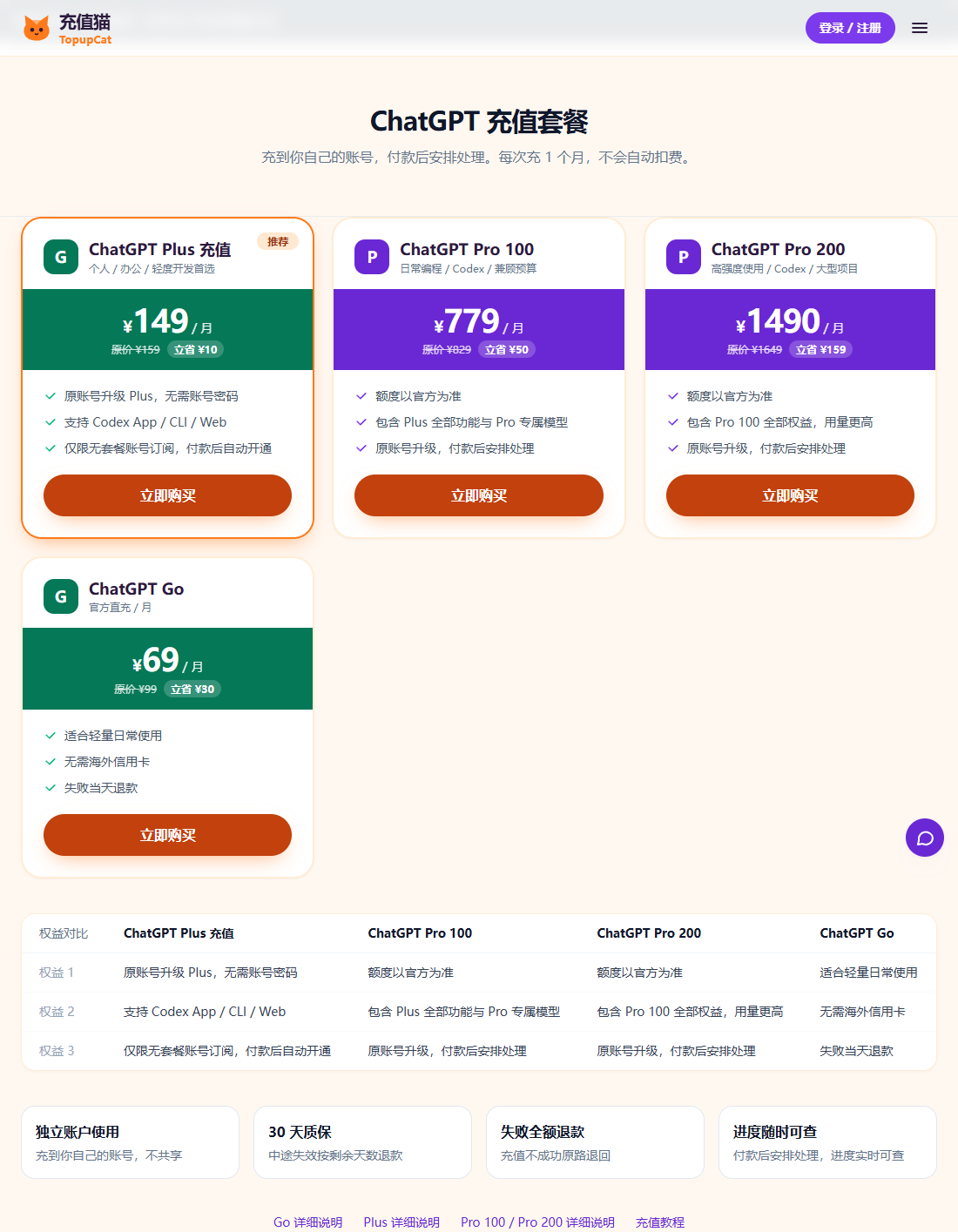
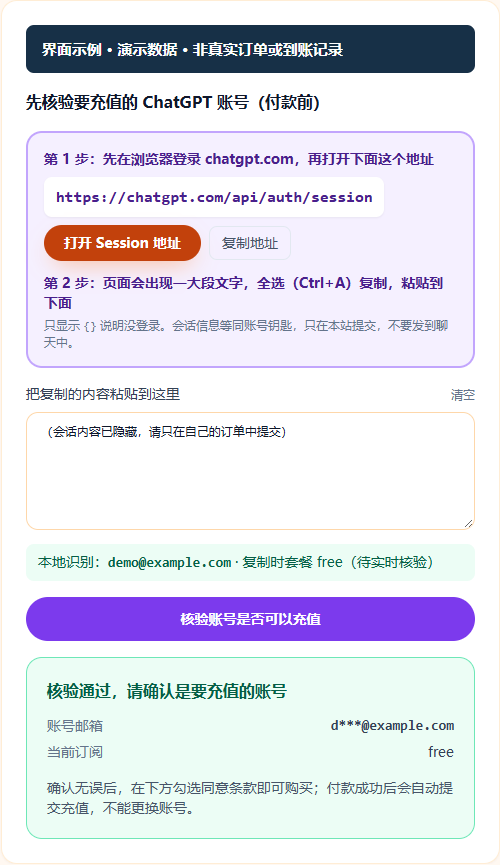
Screen examples use demo data and do not represent real orders or top-up records. Prices and available plans are subject to the current product page. Paste session information to verify the account
In the same browser, sign in to chatgpt.com, change the address to chatgpt.com/api/auth/session, and press Enter. The page shows a block of text; select it all, copy it, return to the order page, and paste it into the “Session information” field. The system then shows the detected account email and current plan, so check that this is the account you want to top up. If the page shows only {} or asks you to sign in, there is no valid session; sign in again and retry. Session information is equivalent to a login credential. Submit it only on the order page and never send it to support or a chat group.
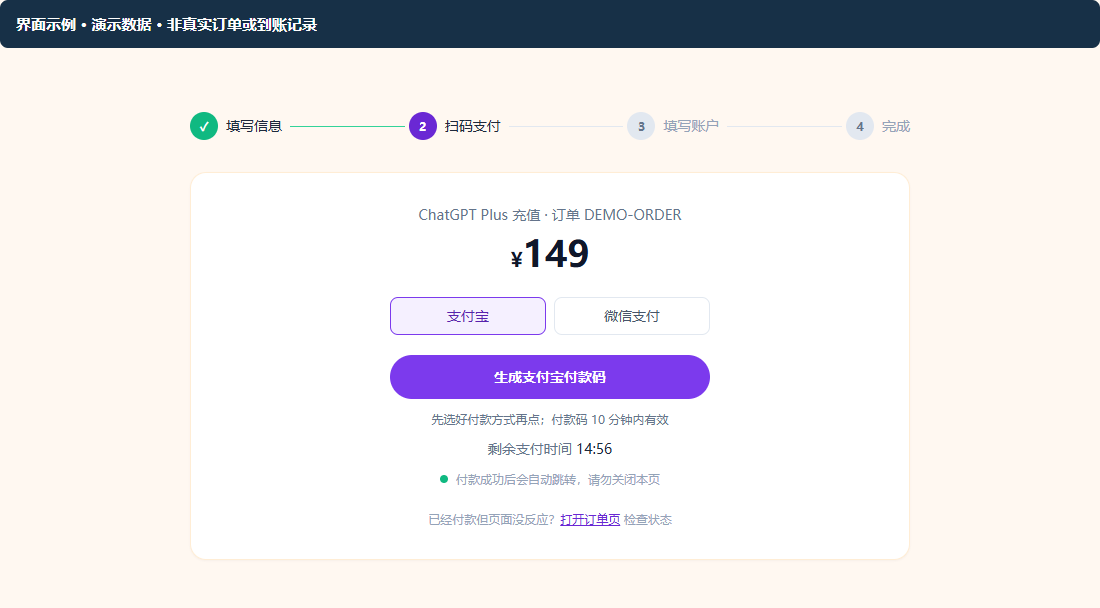
Screen examples use demo data and do not represent real orders or top-up records. Prices and available plans are subject to the current product page. Enter your email and pay by QR code
Enter an email address that can receive mail; it is used to send the order number, recover orders, and deliver progress notifications, and does not need to be your ChatGPT login email. Next, read the top-up terms and tick to agree, then pay by scanning the QR code with Alipay or WeChat. Do not close the page immediately after paying; the order page updates to paid automatically. Closing it is also fine: you can recover the order in “Check order” with your email and the last 4 digits of the order number. If verification fails before payment, the page will not let you pay and no order is created.
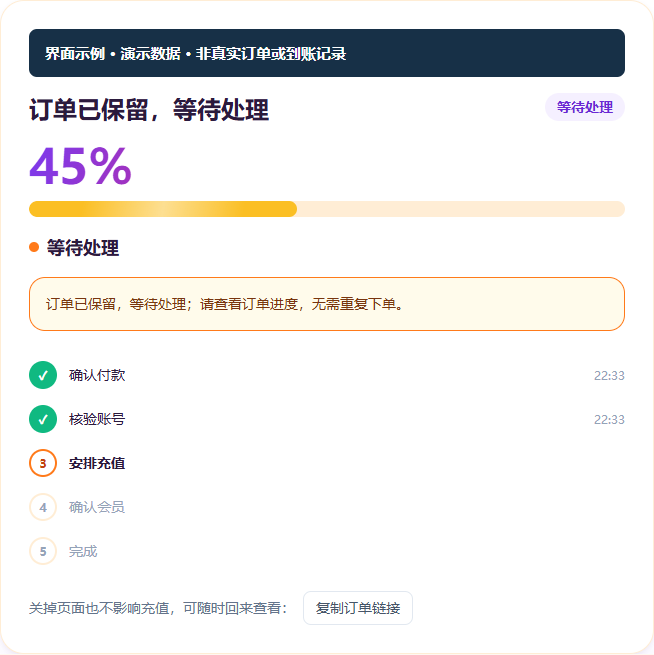
Screen examples use demo data and do not represent real orders or top-up records. Prices and available plans are subject to the current product page. Top-up is scheduled; check progress
After payment the order enters the processing queue, and the order page shows the current status and the time of each step. While it is being processed, do not sign out of ChatGPT, change the password, switch accounts, or manage the subscription on the official site at the same time — these actions make the account state inconsistent with the verification result and are the most common cause of failure. If manual handling is needed, the page states this, and support sees the same record you do, so there is no need to submit again. Closing the page does not affect processing.
Screen examples use demo data and do not represent real orders or top-up records. Prices and available plans are subject to the current product page. Sign in again to confirm
Once the order shows as complete, sign out of ChatGPT and sign in again, then open the account or subscription page in settings and confirm the current plan name matches the tier you bought. Open a commonly used feature and confirm it works. If the interface still shows the old status, clear your cache or sign in again in a different browser; if it still does not match, send your order number to support for checking. The official account page is the reference; the order status on this site only reflects processing on our side.
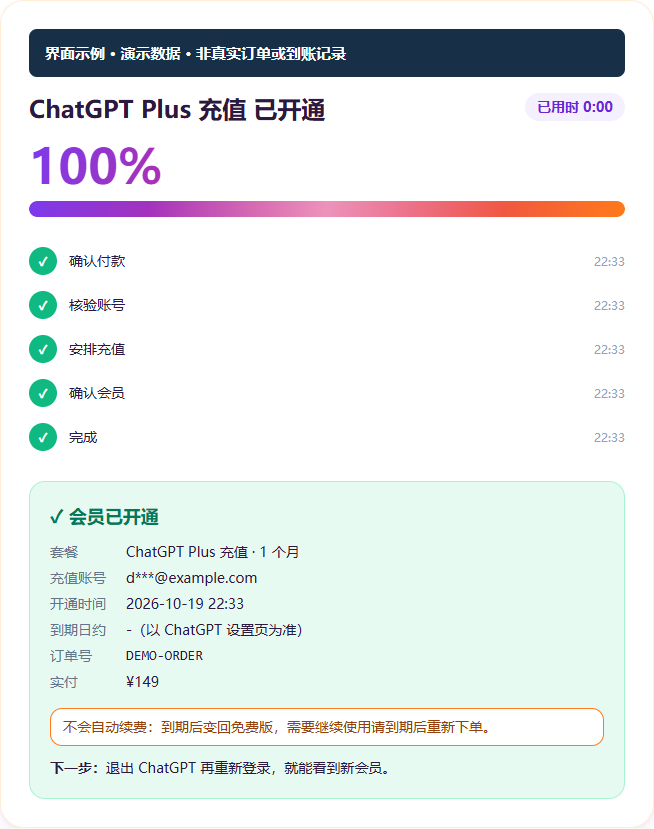
Screen examples use demo data and do not represent real orders or top-up records. Prices and available plans are subject to the current product page.
How to understand order statuses
- Awaiting payment
- The order has been created but not yet paid. Continue payment on the order page; once it expires and closes, you will need to place a new order.
- Paid, awaiting activation
- Payment is confirmed. Follow the prompts on the order page to provide any required information or wait for the next step.
- Submitted, awaiting top-up / top-up in progress
- Details have been submitted or are being processed; this does not mean the official service has charged or that membership is active. Refer to later progress on the order page.
- Completed
- Once the order shows as complete, sign out of ChatGPT and sign in again, then check the membership status in the official account settings.
- Top-up failed / refunded / closed
- Check the reason and refund progress shown on the order page; if you need help, submit your order number through the support entry point.
Track your order · Contact support for after-sales help
Where each step most often goes wrong
- Step one: ordering without checking the account requirements. Accounts that already have a plan are stopped at verification.
- Step two: copying only part of the content, or waiting too long to submit, so the session expires.
- Step three: entering the wrong email, so the order number never arrives and the order can only be traced through the payment record.
- Step four: logging out, changing the password or ordering on the official site during processing, which leaves the order stuck as incomplete.
- Step five: checking only the order status on this site and not confirming the plan on the official account.
Security boundaries for session information
Session information is not a password, but it is equivalent to a valid login credential: anyone who has it can use your account while it remains valid. Submit it only on the order page of this site, and never send it in chats, groups or screenshots. Do not forward it to customer service after submitting; customer service can view it through the order. This site stores sessions encrypted, and only authorised staff processing the order can view them; every viewing is logged. Once the order is complete, the original session is cleared according to the established rules. After the top-up, we recommend logging out of ChatGPT and logging in again, which invalidates the old credential.
How long to wait after paying, and when to contact customer service
Processing time depends on account status, the current queue and the official platform's risk controls. This site makes no fixed promise; the status shown on the order page is authoritative. Most orders do not stay in the same status for long. If there is no change after 30 minutes, or the status says manual review is required, send your order number to customer service. If you need to provide more information, the order page will tell you what to do. Follow those instructions and do not place a duplicate order. Any part of the order that does not succeed is refunded in full under the rules.
60-second checklist before ordering
- The account is a personal account with no other plan currently active.
- You can log in to ChatGPT yourself and know how you log in.
- The session page opens and shows a long block of text.
- The email address can receive mail, and it is entered correctly.
- You can scan a QR code with Alipay or WeChat Pay.
- You will not log out, change the password or switch accounts during processing.
What a successful order usually looks like
From ordering to completion, the usual sequence is: the verification on the order page passes and shows the recognised email and current plan; after payment the order enters the processing queue; you can see the status advance on the order page; when it is complete the order is marked as completed; you log out of ChatGPT and log in again, and the settings show the new plan name. Throughout, the only thing you need to do is keep the account logged in and avoid making changes. Any step that needs you to act is stated on the order page.
What to do if the guide does not cover your case
This guide covers the most common path. If you hit a case it does not describe, first work out which category it falls into: for account status problems, see Troubleshooting; for payment problems, see the prompts on the order page and your payment app's billing record; for progress problems, check the order status and contact customer service. Do not submit the same thing through several channels at once. Duplicate orders and duplicate session submissions create more records, which makes reconciliation harder, not easier.
Why submit the session on the order page instead of sending it to customer service
Session information is a valid login credential. Sent in a chat window, it stays in chat history, notifications and screenshots. It expires eventually, but in the meantime the exposure grows. This site puts it on the order page instead: submitted once, stored encrypted, viewed only by staff authorised for that order, and cleared when processing is done. Customer service needs only the order number to look up an order, not the session content. Anyone who asks for session information in the name of checking an order should be treated with suspicion.
Why verification shows the account email
After verification passes, the page shows the email address it recognised. This lets you confirm that the account about to be topped up is really the one you meant, and not another session logged in elsewhere in the browser. Many failures come from thinking you are topping up account A when you have actually submitted account B. If the email is wrong, log out and log in again, then get the session information once more. Do not continue to payment.
Why verification comes before payment
Verification is placed first so that the question of whether an account can be topped up is answered before any money is spent. In flows where payment comes first, an ineligible account can only be refunded, and the refund has to wait on the payment channel, which takes days. Moving verification earlier costs you one extra session copy, and the benefit is that the vast majority of ineligible accounts are stopped before payment. This is also the biggest procedural difference between this site and most other top-up services.
FAQ
Are the screenshots in the guide real orders?
No. The screenshots use demonstration data to show where buttons are and how pages are laid out. They do not represent real orders, accounts or top-up records. For prices and available plans, refer to the current product pages.
Can I pay first and verify afterwards?
No. This site puts verification before payment. If verification fails, no order is created and nothing is charged.
How long is session information kept?
A session is used only to process that order. It is stored encrypted, only authorised processing staff can view it, and every viewing is logged. When the order is complete it is cleared according to the established rules.
After paying, can I change to a different plan or a different account?
No. After payment you cannot change the account or the plan. Before ordering, check the email shown by verification and the plan you selected.
Does the guide work on a phone?
Yes. A mobile browser can open the session page the same way; press and hold, select all, then copy. The ordering and payment steps are identical, and paying by QR code is more direct on a phone.
Are the prices in the guide up to date?
They are not fixed values. Prices follow what the product pages show at the time; the guide only explains the process and its order.
Do desktop and mobile work the same way?
Yes. The only difference is how you copy: on a computer use Ctrl+A to select all, on a phone press and hold and choose Select All.
What should I do after the top-up succeeds?
Log out of ChatGPT and log in again, then check the plan name in the settings. Continue using the new credential; the old one is invalidated.
Can payment and verification be done in the opposite order?
No. Verification first is a fixed part of this site's process. If verification fails, no payable order is created.
Can I skip steps in the guide?
Do not skip any. In particular, do not skip verification and pay directly, and do not skip the re-login step when checking whether the top-up has arrived.
Should I read the guide or troubleshooting first?
For your first order, read the guide and follow the five steps in order. If you are stuck at a step or the page shows an error, read Troubleshooting and find the entry that matches the error.
Do all five steps have to be done in one go?
The first three steps must be done in one go: do not leave long gaps between choosing a plan, verifying and paying, because the session information expires. After payment you can leave the page. Processing continues in the background, and you can return at any time with your order number.
Which plans does the guide cover?
The process is identical for all four tiers, Go, Plus, Pro 100 and Pro 200; only the tier you select in step one differs. For the account requirements of each tier, see the corresponding product page.
Start top-up · See self-service troubleshooting if you run into issues
Related plans: Go · Plus · Pro
Last updated: